
Tasks
What gets agreed in passing gets lost. Here it lands in your inbox in two seconds — typed or dictated — and is still there in the evening.
Every feature
34 features, grouped by area of work. Every one of them exists in the product.
Capture
Fast inbox
Type what is on your mind at the top and it lands as a task in your inbox. No form, no project, no excuse.
Shortcuts while typing
“tomorrow 9am !high @Name” sets date, priority and assignee right in the first line — with Securo Tasks Pro, #KEY files the task straight into a project. Recognised shortcuts show up as chips below.
Dictate instead of typing
Tasks can be spoken — handy in the car, on site and anywhere your hands are full.
AI structures notes
With Securo AI, the AI splits a scribbled note into separate tasks shortly after you capture it. An AI report explains the result, and the switch can be turned off at any time.
Templates for tasks and projects
Describe recurring work once — with checklist, estimate, recurrence and a due date in days. “Save as template …” turns an existing task into a template; with Securo Tasks Pro, whole projects too.
Organise & find
Seven views for the day
Today, Inbox, Open, Overdue, Upcoming, Done and All — plus the scope: my tasks, watched tasks, tasks visible to the team or everything visible.
List or table
In the table you change status, priority, assignee and due date right in the row and show or hide columns. The list groups by due date, status, priority, assignee or project.
Search, filter, sort
Search titles and descriptions, filter by status, priority, assignee, project and due date. Your choice is remembered until you click “Reset” — even after a look into a task.
Many tasks at once
Change, assign, push back by a day or a week, or move to the trash up to 200 selected tasks in one go. Keyboard shortcuts such as J/K, X and E do it without a mouse.
CSV export and import
Download the current view, filters included, as a file for Excel. On import a preview names the reason for every faulty row before the valid tasks are created.
Trash with undo
Deleted tasks stay in the trash for 30 days and can be restored, several at once if needed. Right after deleting, a click on “Undo” is enough.
The individual task
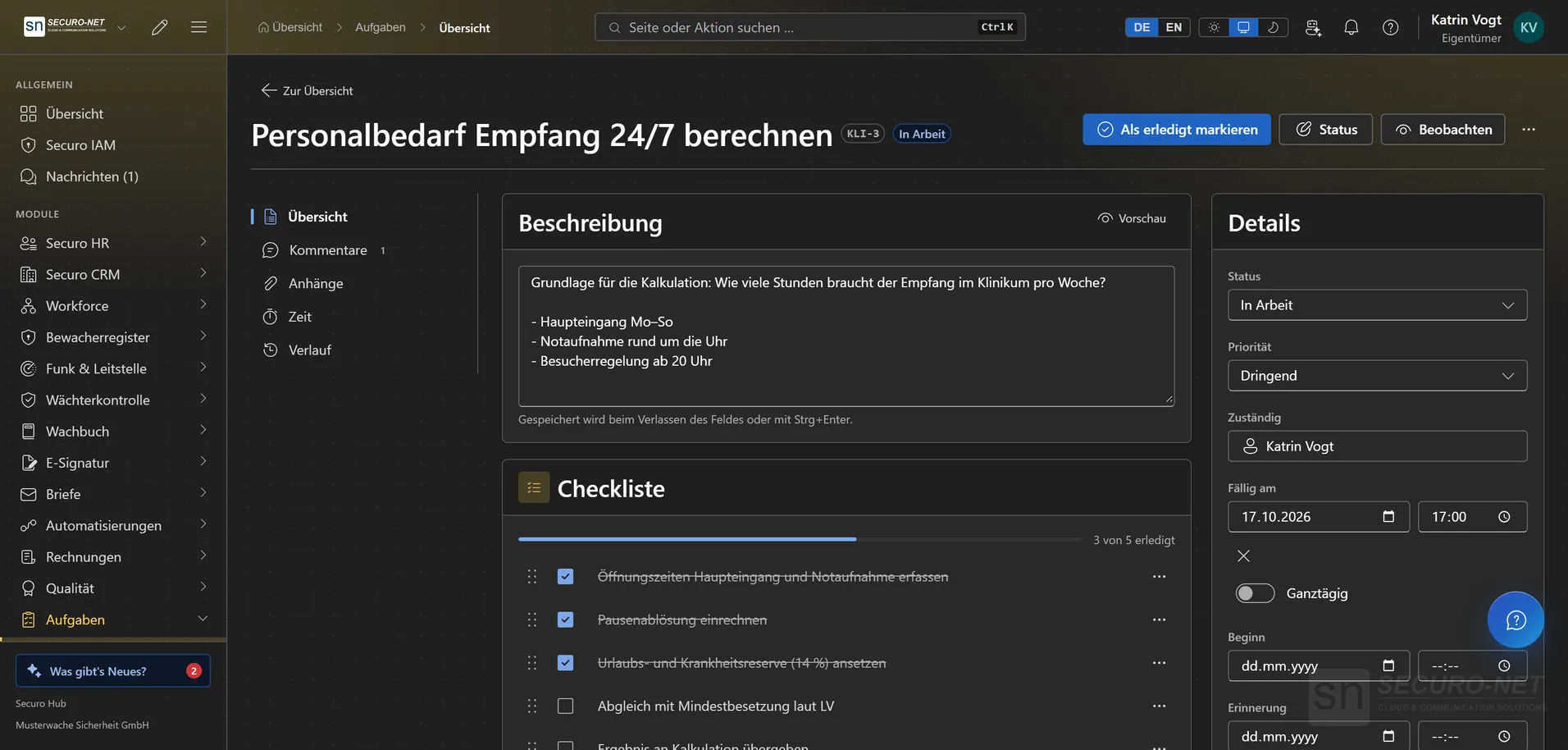
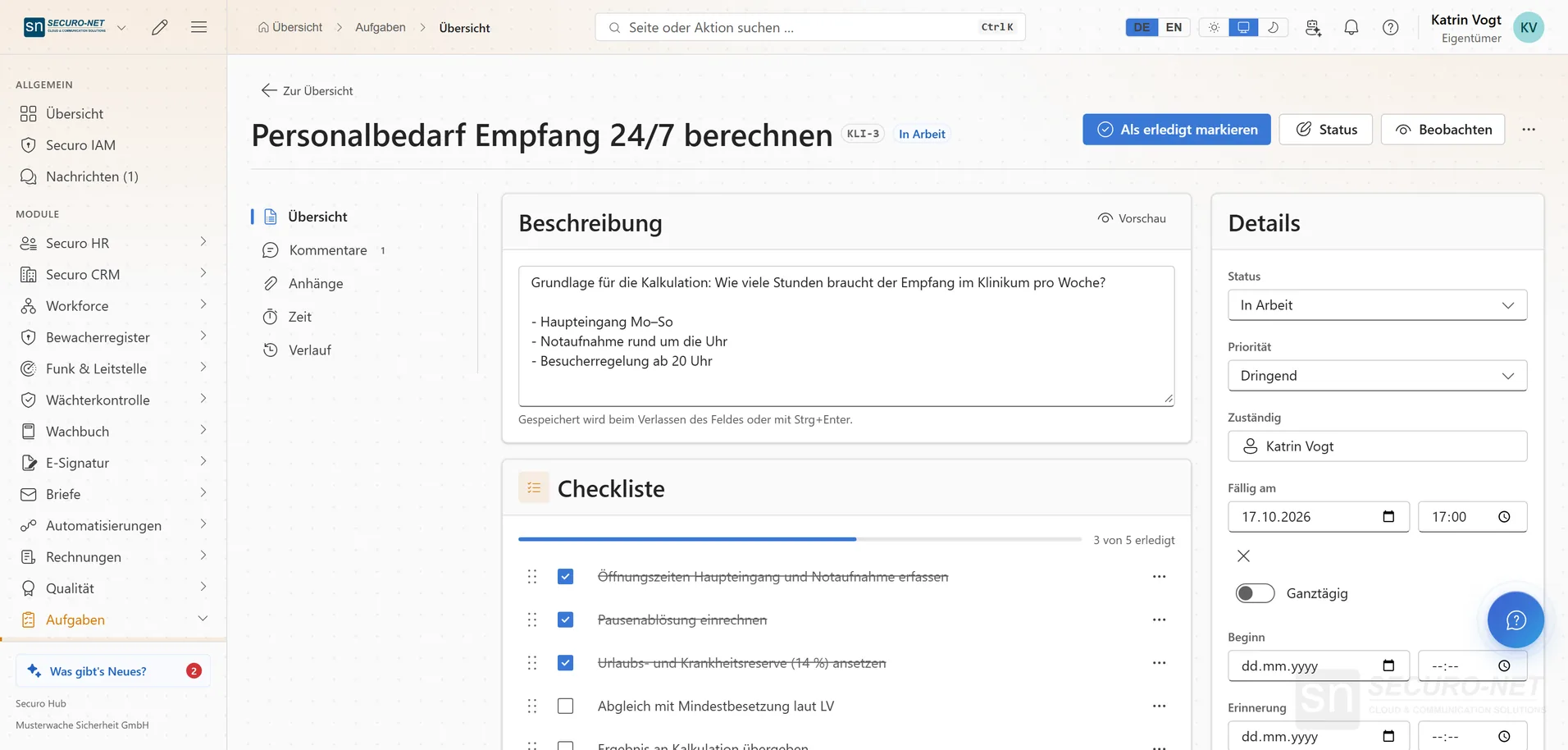
Detail page per task
Due date (all-day too), start, reminder, estimated time and visibility in one place. Every field saves by itself — there is no save button.
Checklists
Up to 200 items per task: added with Enter, ticked off instantly, renamed with a click and dragged into order by the handle.
Dependencies
Record what a task is waiting for and what it is blocking. Open predecessors appear as a notice above it; a loop — even a roundabout one — is rejected.
Recurring tasks
Completing a task creates exactly the next one in the series. “By schedule” keeps a fixed rhythm, “After completion” counts from the day it was checked off.
Attachments with preview
Simply drag files onto the task; images show up as a preview straight away. Up to 50 attachments per task and 25 MB per file — images, PDFs, Office documents or emails.
Time against estimate
Log duration, day and a note per entry; the total sits right next to the estimated time. Only your own entries can be changed.
History of every change
Who changed what and when is listed in the task's history — including changes by the AI and dates that were moved in Outlook.
Calendar & Outlook
Drag-and-drop calendar
Month or week: dragging a task to another day moves its due date, and undated tasks are dragged in from the “Without due date” tray. On the phone it becomes an agenda.
Tasks in your Outlook calendar
Open tasks assigned to you appear in your Outlook calendar “Securo – Tasks”. Move an event there and the task takes the new date. Requires a Microsoft 365 connection.
Outlook events alongside
If you wish, your Outlook events appear in the task calendar above the day's tasks. Private and confidential events show only as “Busy”.
Team & overview
Team board with workload
Per person: open, in progress, overdue, due this week and the estimated time; one click narrows the list. Other people's private tasks never appear here, not even as a number.
Comments, mentions & watchers
Questions right on the task; anyone mentioned with @ is notified and watches the task from then on. On comments and status changes, author, assignees and watchers are told.
AI preparation
Prepare a letter draft from a task (with Securo Letter and Securo CRM) or get a cover suggested for a shift (with Securo Workforce). Nothing is sent or assigned on its own.
Custom fields
Create fields such as “risk level” or “cost centre” — text, number, date, selection, yes/no or person, with Securo CRM also customer and contact. Optionally required and shown on the board card.
Daily digest, time zone & AI
Whether and at what hour the daily digest arrives, which time zone “Today” uses and whether the AI lends a hand. Notifications are set centrally in your personal settings.
Projects & planning (Securo Tasks Pro)
Projects with ticket keys
Related tasks under a short key such as SEC — every task gets a number like SEC-142 automatically. With Securo Tasks Pro.
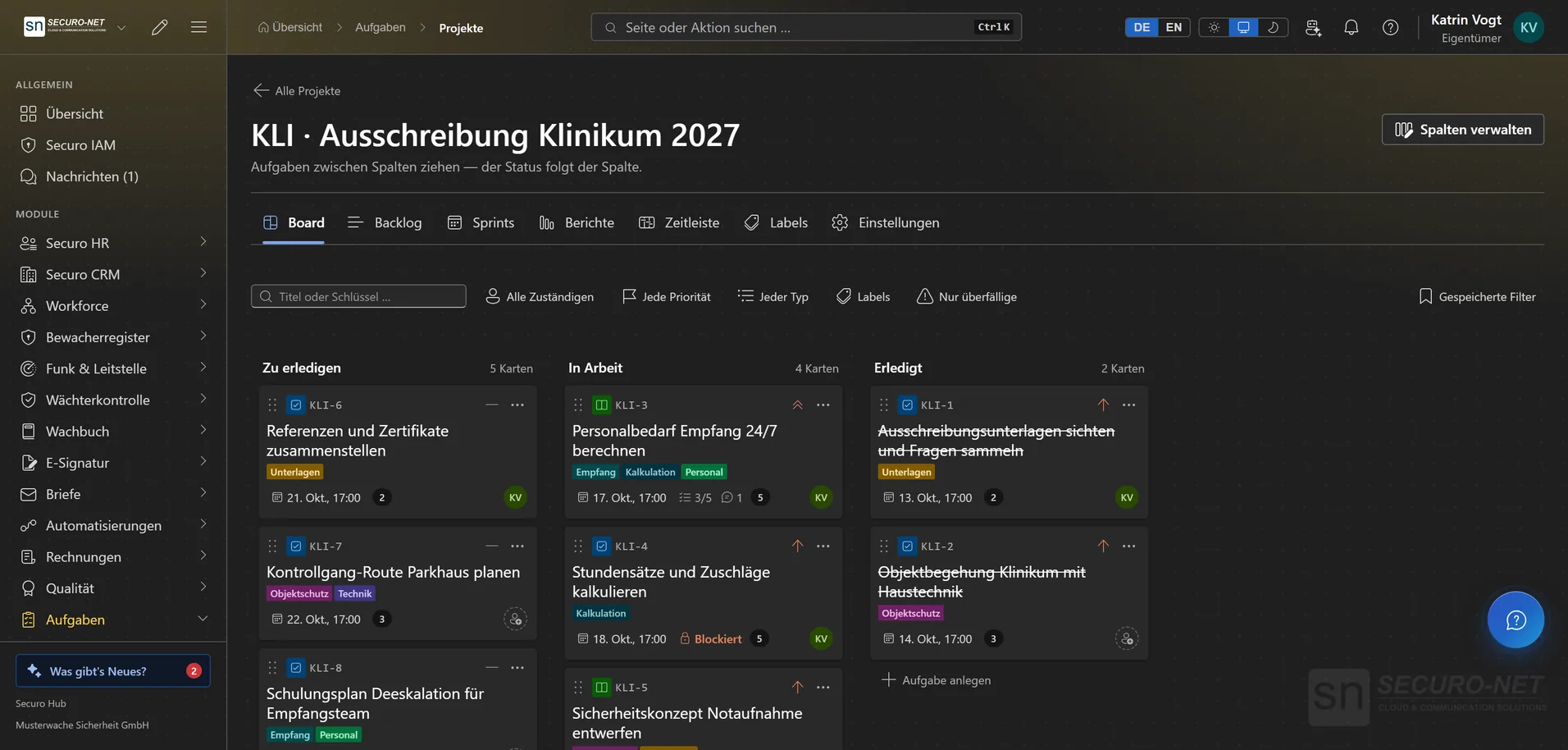
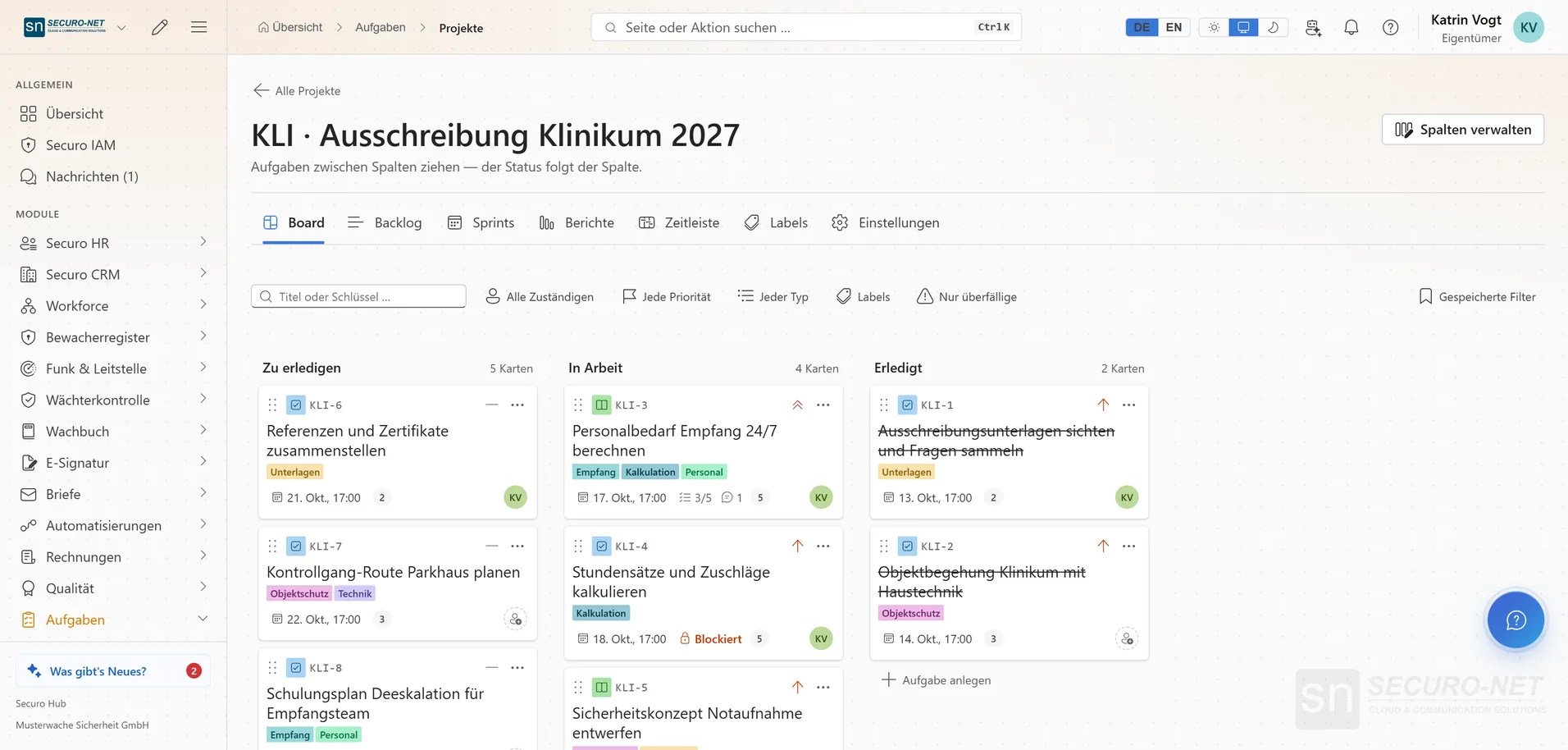
Kanban board
Tasks as cards in columns; moving a card changes the status. New tasks are created right in the column, and filters can be saved — for the whole organisation if you like.
Backlog with hierarchy
An epic bundles tasks, a task has sub-tasks — expandable, so large efforts stay readable.
Sprints
Plan work in fixed time boxes, with a story-point estimate per task.
Timeline
Every task of a project as a bar from start to due date, by week, month or quarter — with a line for today and a red edge for anything overdue.
Labels & components
Coloured markers across status and sprint — a theme such as “urgent”, an area such as “technical”.
Burndown, velocity & workload
Three reports per project: the burndown of a sprint, the output across completed sprints and the open tasks per team member.
Lead, members & columns
Set the project lead and members, arrange board columns with a WIP limit and archive a project — its tasks are kept in full.
More views from Tasks
Screens from day-to-day operation — demo data, but no retouching afterwards.
Detail page per task
Description, checklist, due date and owner in one place — every field saves by itself.
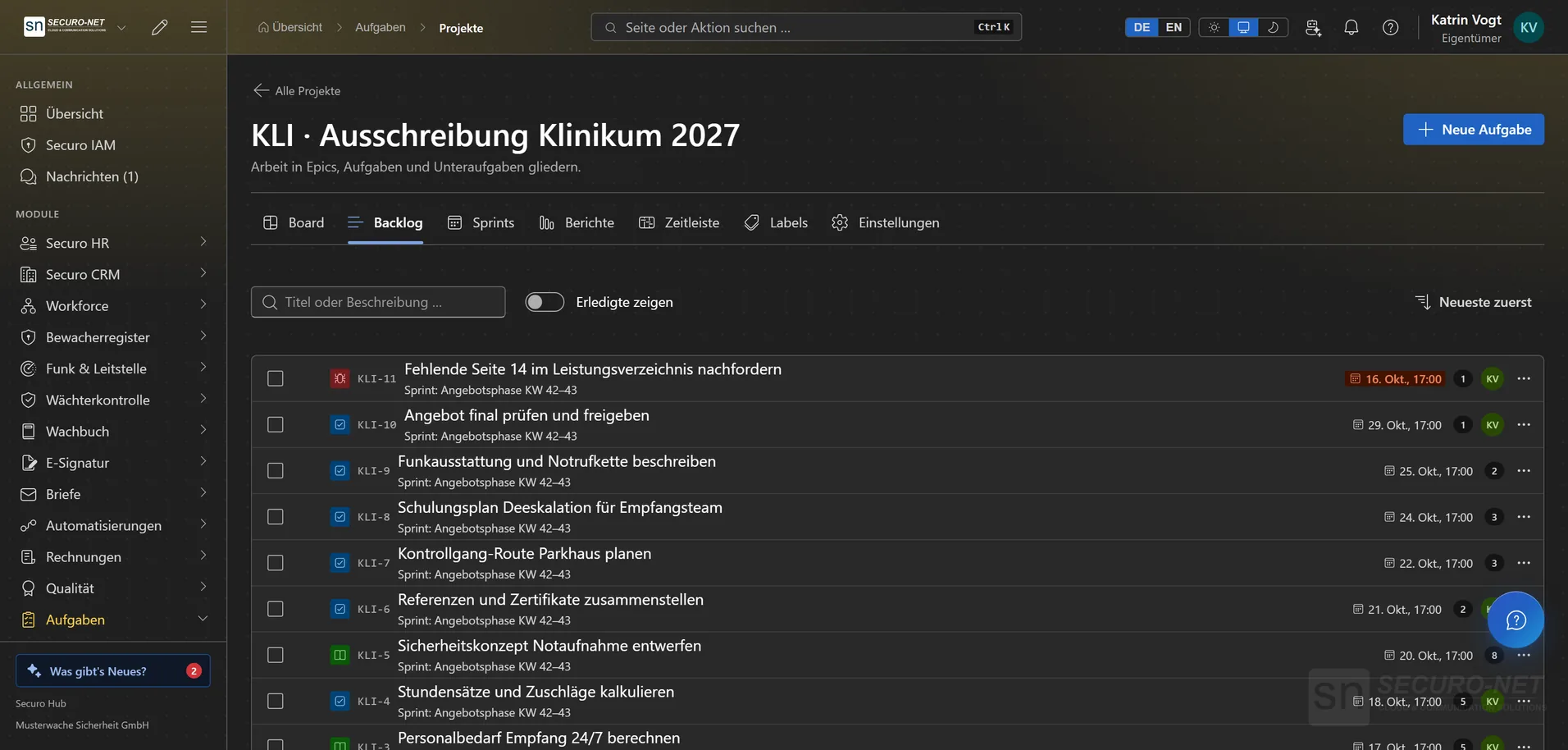
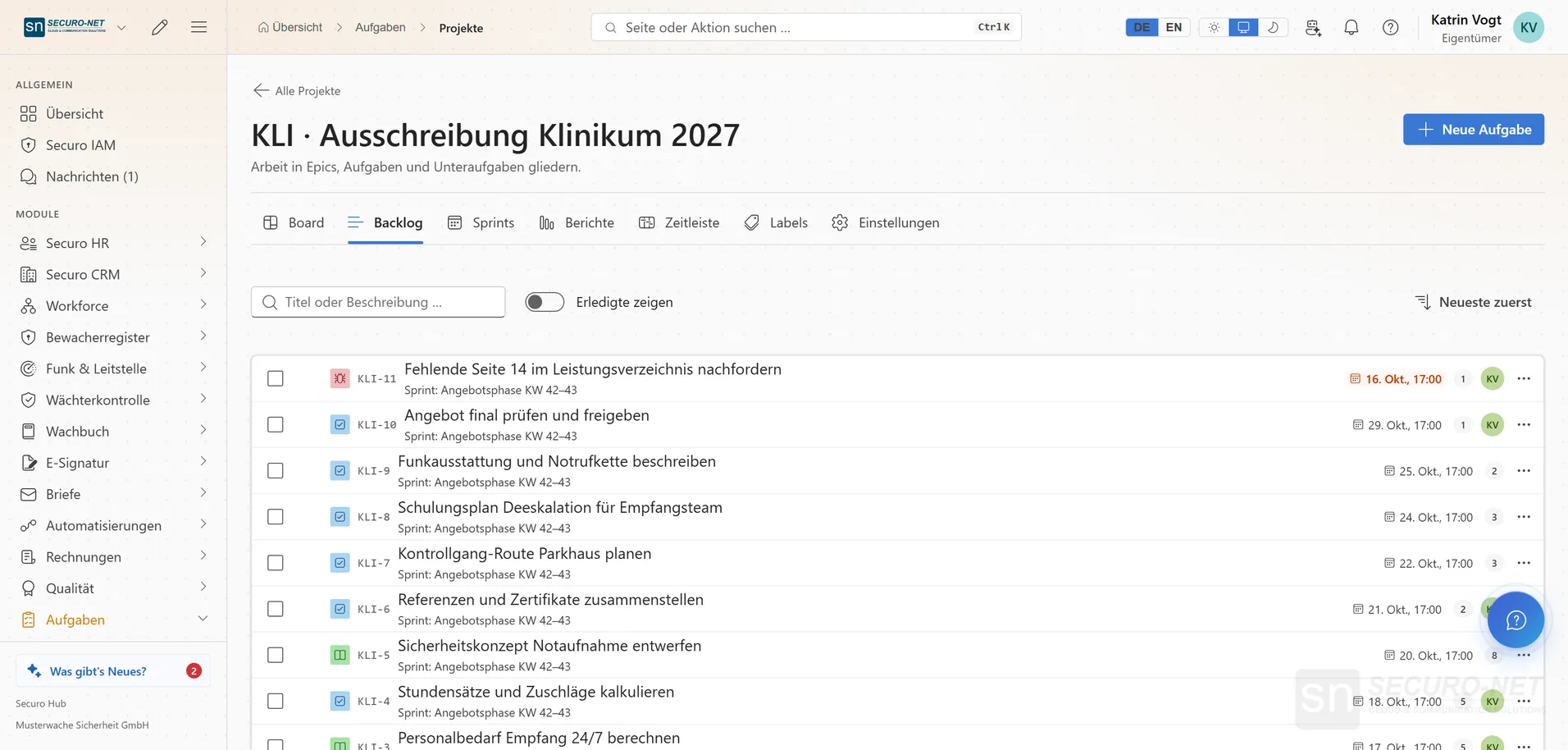
Backlog with sprints
Every task in a project with sprint, due date and owner — sortable and filterable.
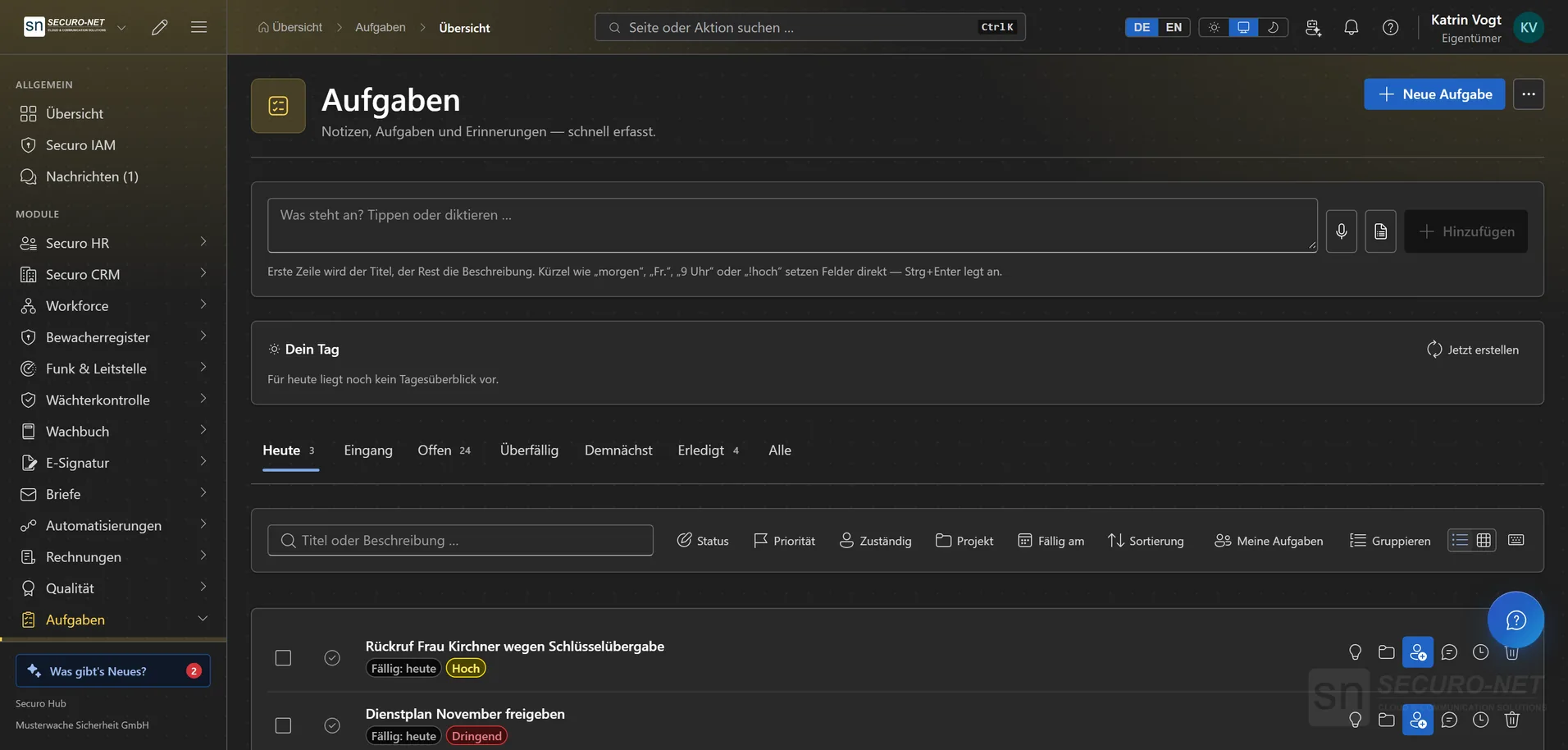
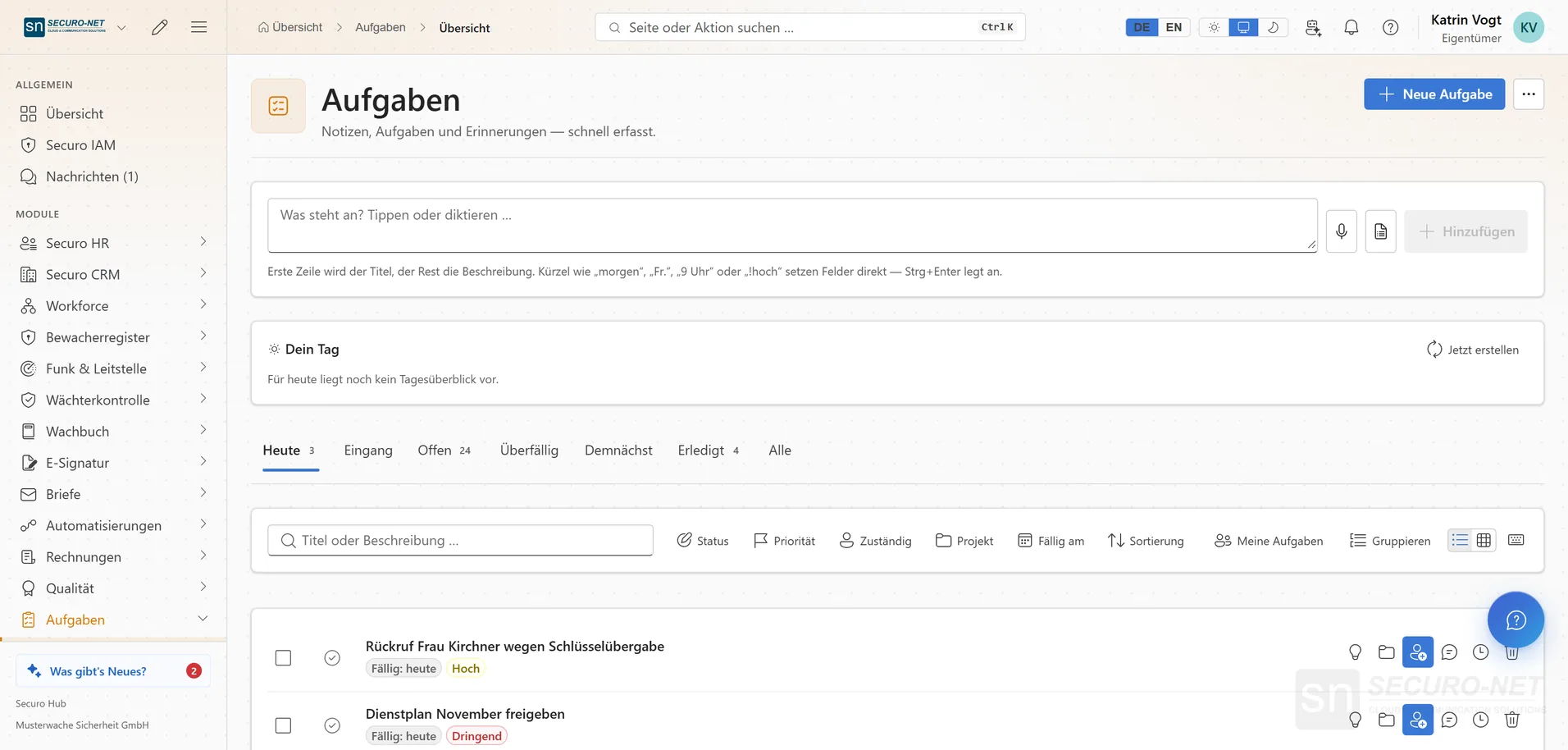
Your day at a glance
Today, Inbox, Open, Overdue, Upcoming — with the quick capture field on top.
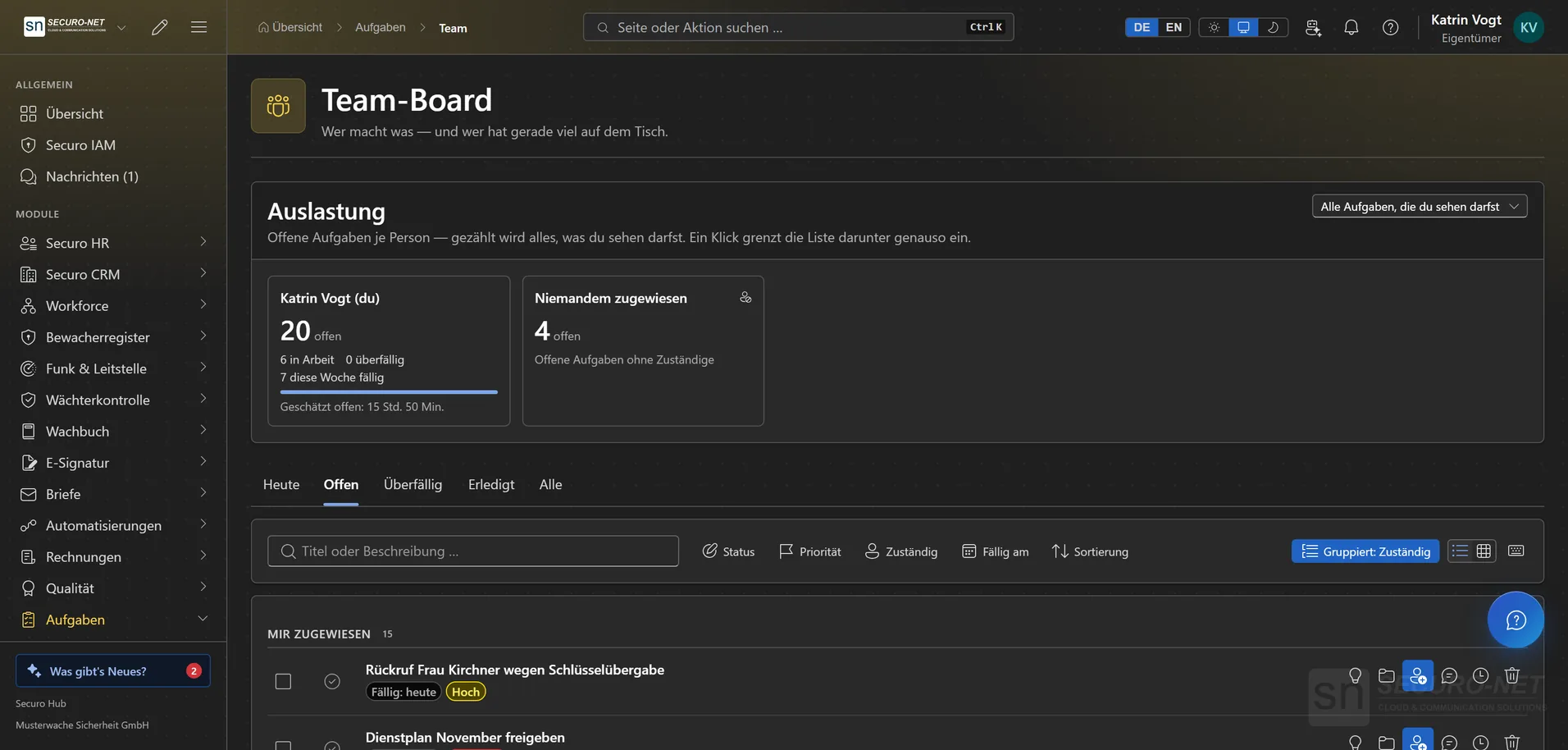
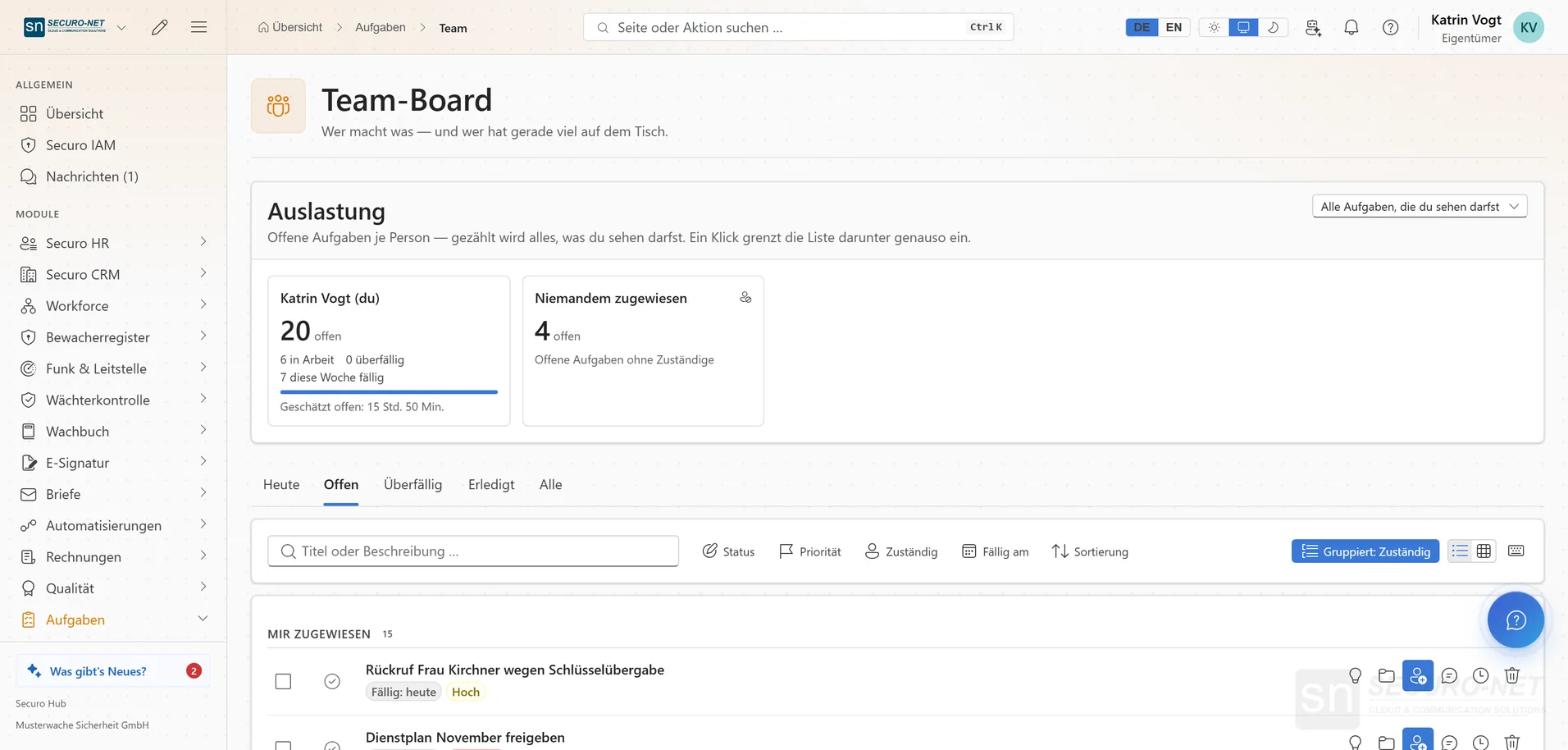
Team board with workload
Per person: open, in progress, overdue and the estimated time.
Works well with
These modules share the same data — together they remove the double data entry.
Quality
ISO 9001 from gap analysis through audits to the certificate — including DIN 77200.
Fleet
Vehicles, trip log, taxable benefit, dispatch, costs and deadlines.
Support
A helpdesk for email, widget, live chat and callbacks — with macros, deadlines in business hours, a knowledge base and reporting.
Part of Securo Hub
This module is part of the Securo Hub platform — one login, shared data, one design. Use it standalone or together with others.