
Telephony
You only learn who is calling after picking up — and what it is about only after looking it up. Connected to your existing Teams line, the name and the current shift are there before you answer.
Every feature
12 features, grouped by area of work. Every one of them exists in the product.
Setup
Microsoft Teams connection
Telephony builds on your existing Teams calling plan — no second phone system. Seeing calls, recognising callers and the call list are included without an extra licence.
Consent once, done
Your IT consents once under Integrations › Microsoft 365 with “Consent at Microsoft”; Securo detects your Microsoft tenant on its own. Telephony is then enabled at Microsoft there with a single click.
Day to day
Calls in the hub
Incoming calls appear as a card in the hub — you know who is calling before you pick up. Whether the card appears is each person’s own choice, with a switch of their own.
Caller recognition
Known numbers are shown with a name: customers, contacts, employees, subcontractors and the contacts of a location — including its escalation chain. You decide which sources count.
What the call is likely about
When an employee calls, the card shows their current or next shift and location — for example “On duty 18:00–06:00 · Werk Nord”. “I’m sick” can be handled without opening the schedule.
Straight from the call card
From the card you open the caller’s profile, create a callback as a task, create an unknown number as a customer or record an employee’s sick leave — depending on your modules and permissions.
Personal call log
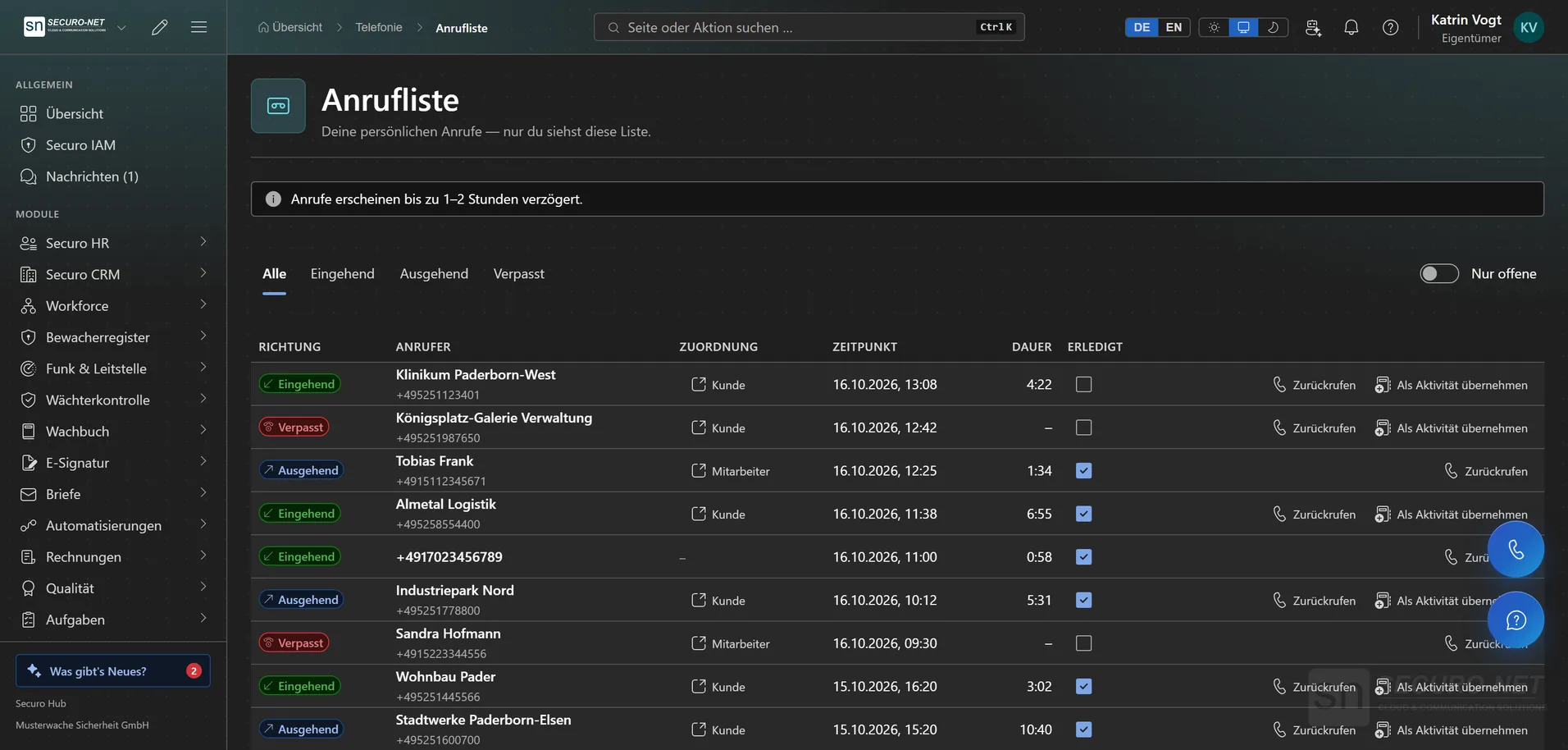
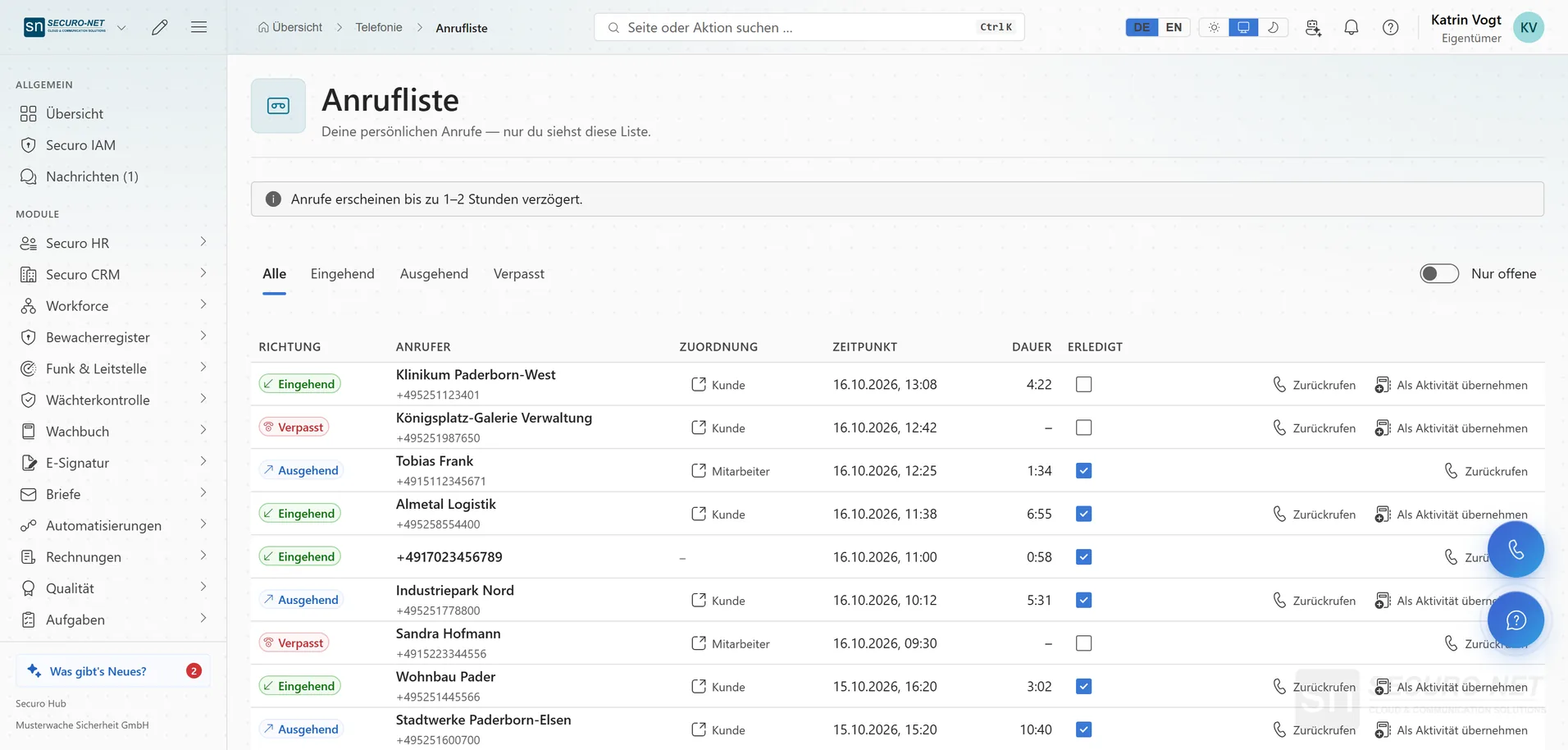
Incoming, outgoing and missed calls — optional and visible only to you. Only key data is stored, never call content; missed calls can be followed up directly.
A call as a CRM activity
Save a call with a recognised customer or contact to the customer record with “Save as activity” — after hanging up, with the call duration already filled in. With Securo CRM.
Calling in the hub
Take calls in the browser
With a seat of the Securo Telefonie · Pro licence you call right in the hub: answer, decline, hold, mute; a second call puts the current one on hold. Every call still rings in Teams as well.
Dial pad and call buttons
Use “Make a call” to dial any number or call back from your call list; call buttons also sit next to the numbers of customers, contacts and employees. Outgoing calls need a Teams phone licence on the Microsoft account.
Transfer and call notes
During a call you transfer it to another number or jot down a call note — on hanging up it is carried over into the task or the CRM activity.
Device check and diagnosis
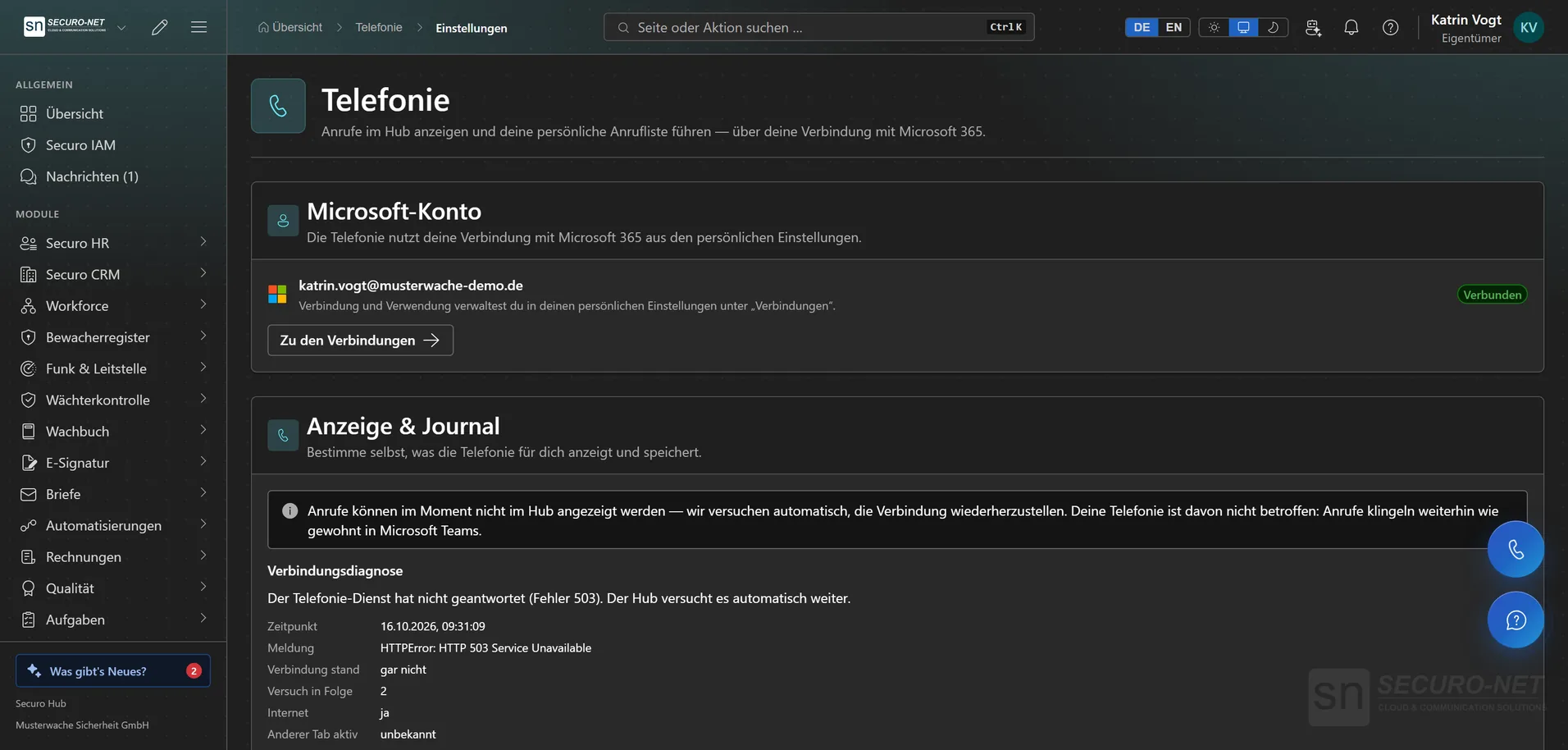
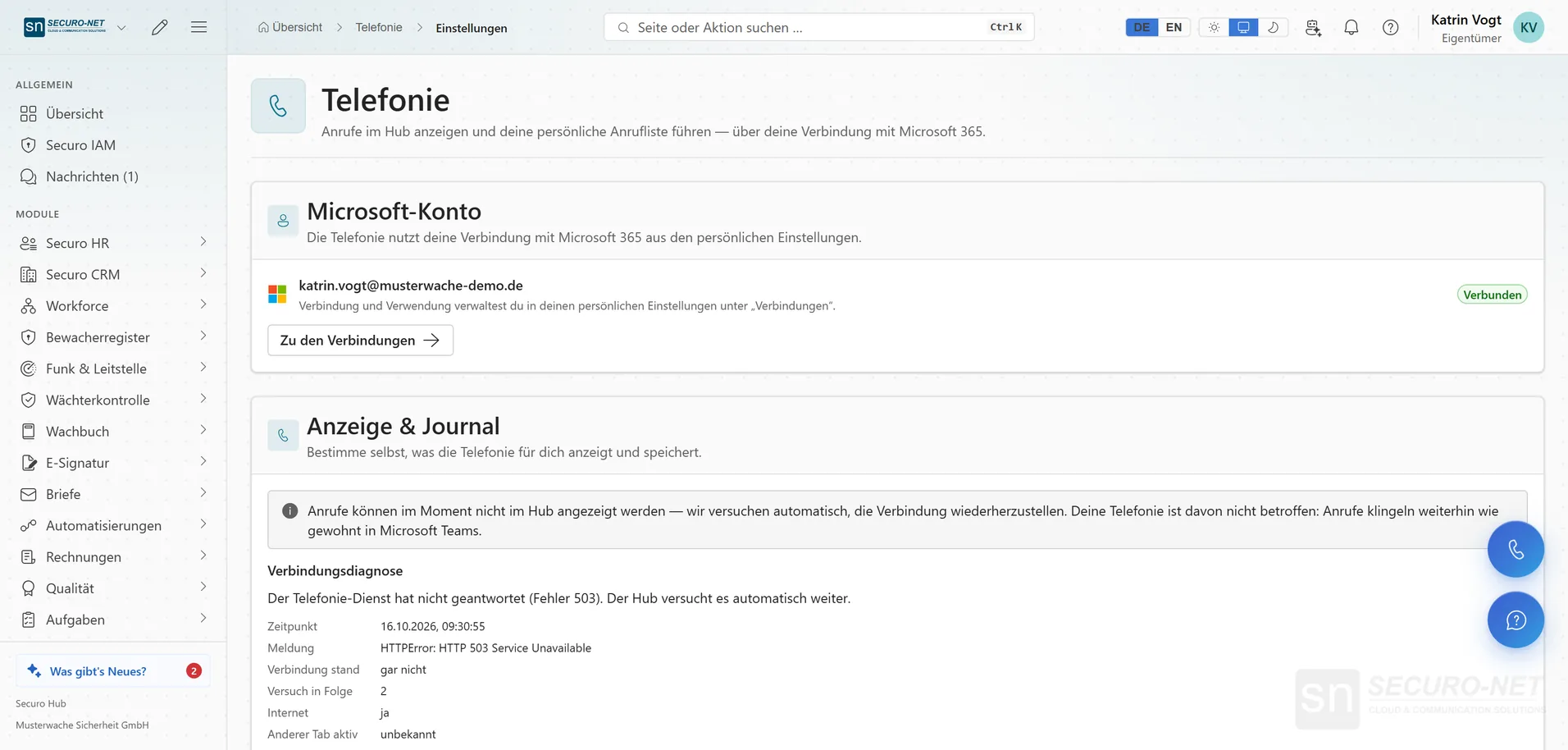
Choose microphone and speaker, test the microphone, switch on the ringtone, test the connection. If something is off, the connection diagnosis names the likely cause — such as an ad blocker — and the next step.
More views from Telephony
Screens from day-to-day operation — demo data, but no retouching afterwards.
Calling via Microsoft Teams
Calling builds on your Teams line — you switch on the call card and call log yourself.
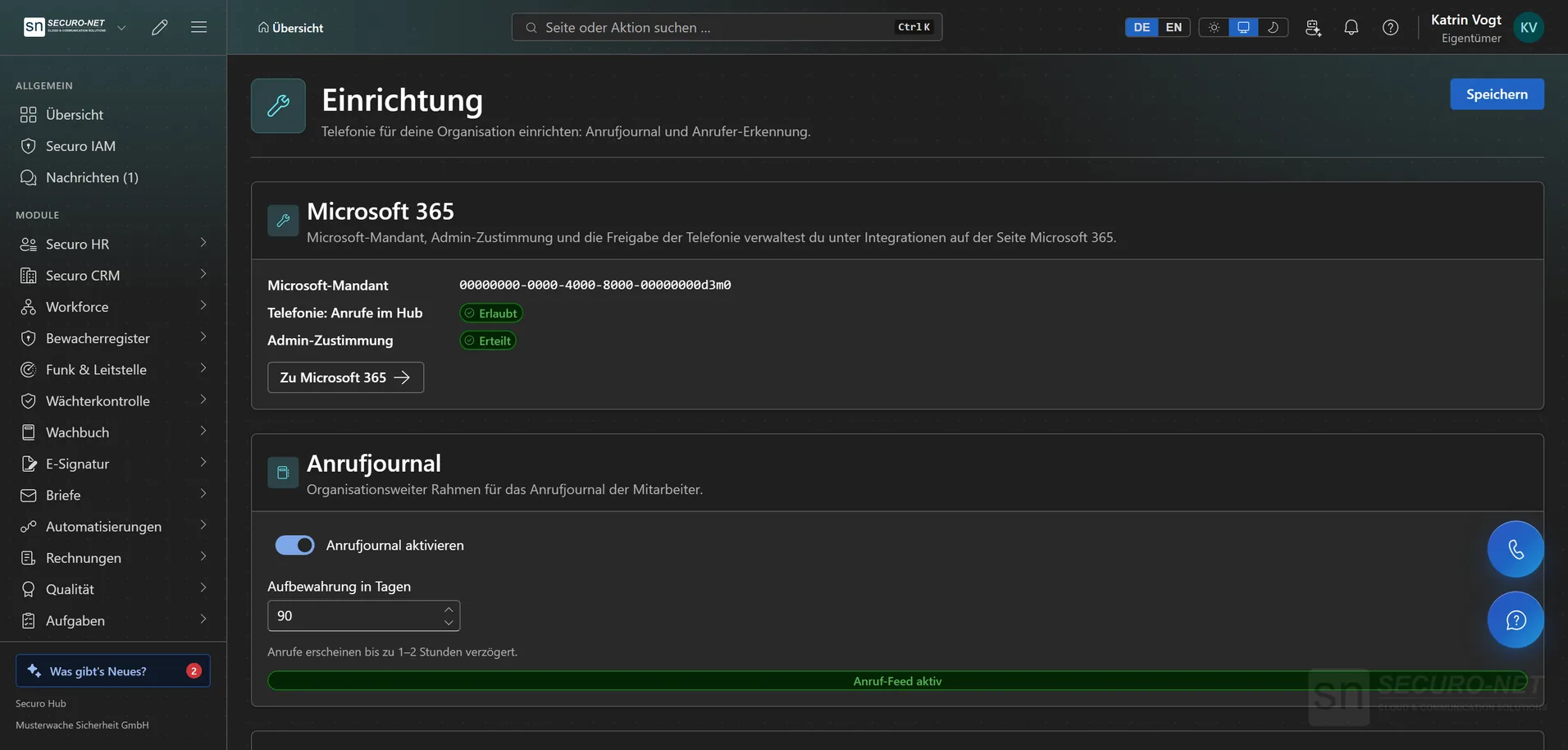
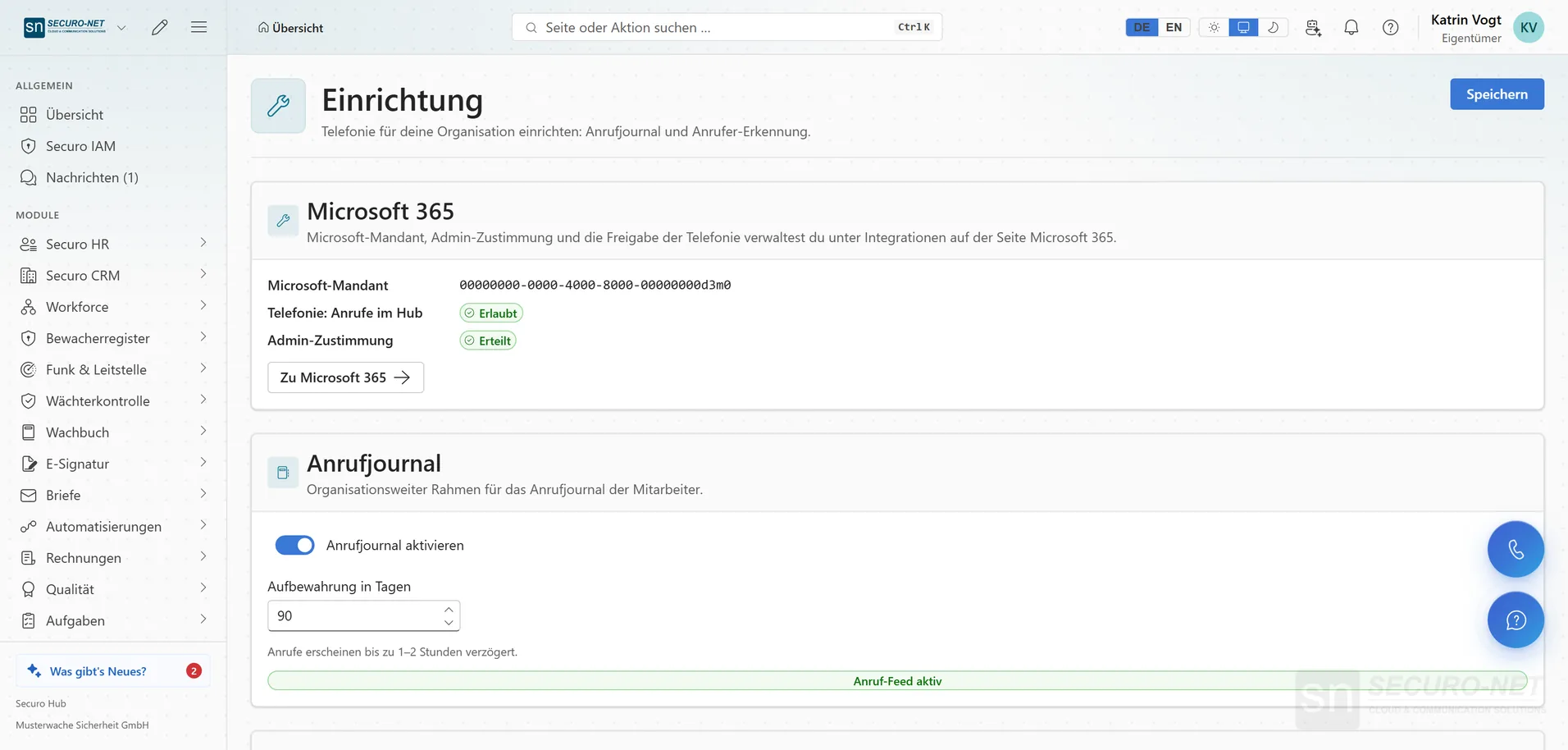
Set up caller recognition
The organisation decides where callers are recognised from — customers, contacts, sites, employees.
Works well with
These modules share the same data — together they remove the double data entry.
Automations
Recurring processes as workflows — triggered by module events, a schedule, a button or from outside.
AI assistant
Answers questions about the hub — and with Securo AI proposes shifts, master data, quotes and invoices that you confirm with one click.
Integrations
Connect external services — Stripe, Microsoft 365 and data migration from the planner.
Part of Securo Hub
This module is part of the Securo Hub platform — one login, shared data, one design. Use it standalone or together with others.